Terminal & Shell
Terminal and Shell
As we talked about, "shell," "CLI," and "terminal" often get used to mean the same thing - a program for issuing text-based commands. But if I'm being precise about it, that's not quite right.
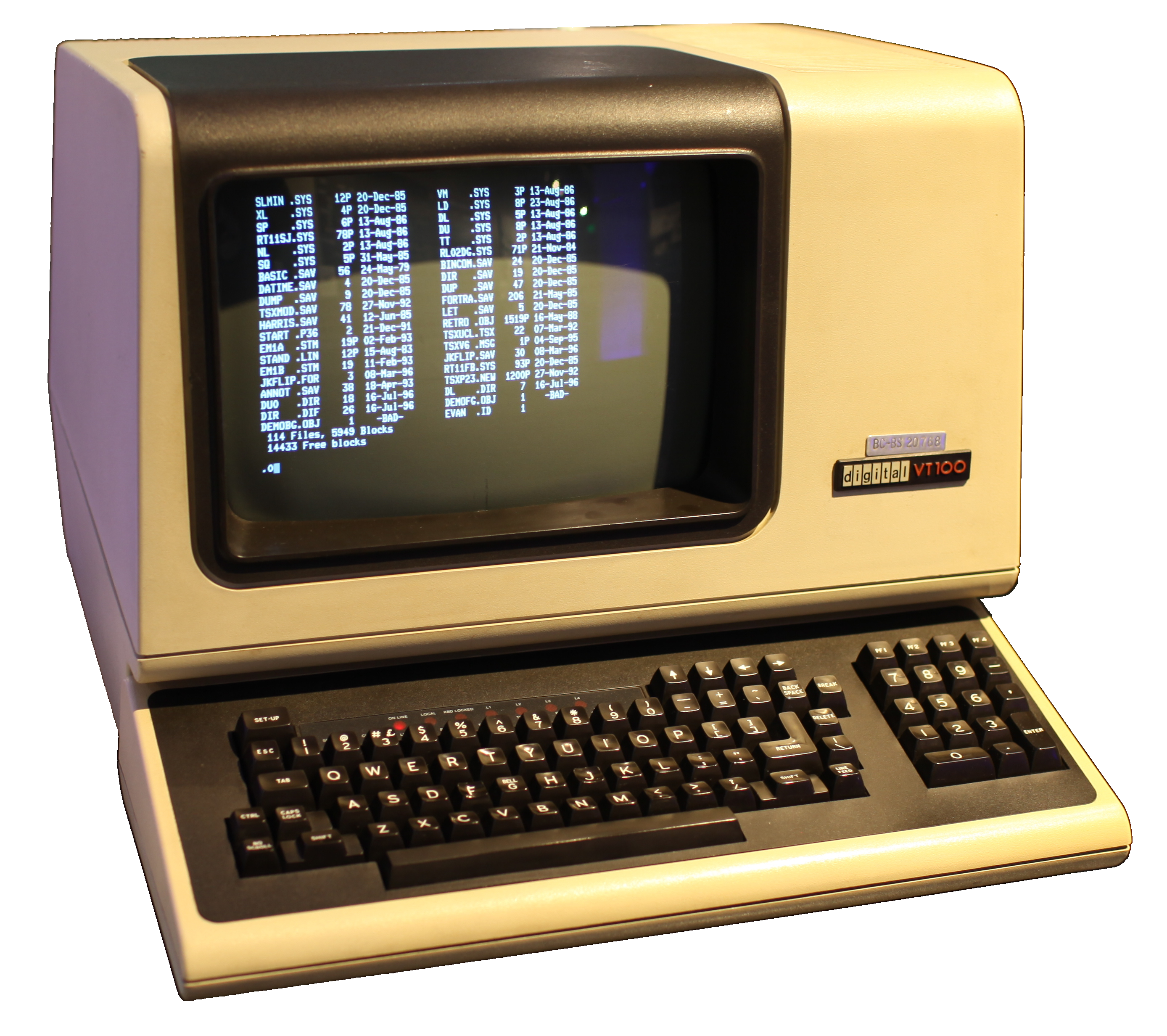
To get pedantic for a second: the terminal is really just one specific piece of that bigger picture. Historically, "terminal" meant a physical device you could type into, basically a keyboard and a screen, nothing more.
These days, when people say "terminal," they really mean a:
- terminal emulator - a program that emulates that old physical device. It's just a window that lets you type commands and see what comes back.
Here's the part that's easy to miss: which commands you're actually allowed to type isn't decided by the terminal emulator at all. Its only job is drawing text on the screen and capturing your keystrokes. it doesn't understand a word of what you typed.
So if the terminal doesn't actually run your commands... what does?
That's the shell.
The shell is the program working behind the scenes, inside that window. Its main job is to take whatever you type, figure out what it means, and actually run it.
This loop has a name: a REPL. It stands for Read, Eval, Print, Loop and that's literally what a shell does every time you hit enter:
- Read the command you typed
- Evaluate it, usually by running some other program on your machine
- Print the output back to the screen
- Loop back and wait for the next command
So if the terminal is the window you're typing into, the shell is the brain sitting inside that window — the thing actually reading what you type and making it happen.
The one-line takeaway
The terminal is just the window you type into the shell is the brain inside it, actually running what you type.
Bash and Zsh
I used to think of bash and zsh as just the thing you type ls and cd into. Turns out that's only half the story.
We already know shells work as a REPL the read, evaluate, print, loop we covered last time. What I didn't realize is how far that goes. Bash and zsh aren't limited to echoing text back at you, they can do math, handle logic, and create variables, basically like any other programming language.
That said, they're built to be small, simple scripting languages, not application building ones. People have technically pushed them further than that, there's a real GitHub project that builds an entire web framework purely in bash, mostly to prove it's possible rather than because anyone should actually do it. But that's the exception. Shells are meant for small scripts and automating things on your machine, not for building full applications.
Variables
That's actually the first real programming language feature shells have: variables. Creating one looks like this:
No space before the =, no space after it. That's not optional the shell reads spaces as separators between commands and their arguments, so a stray space turns name = into something it tries to run as a command, and it just errors out.
Using the variable isn't quite like Python, where you just type the name and it resolves on its own. In a shell, you have to put a $ in front of it:
Drop the $ and you just get the literal word name printed back, not the value stored inside it.
You can drop it straight into a sentence too, and it works exactly the same way:
That's the whole trick no special syntax, just $variablename wherever you want the value to land.
The one-line takeaway
Bash and zsh aren't just places to run commands, they're real programming languages, just deliberately kept small.
History
When you're working in a REPL, it's really helpful to be able to see the commands you've typed in the past. That way you can easily re-run them, or copy and paste them into a script. To print out the history of commands you've typed in your shell, you can use the history command.
You can use the ↑ and ↓ arrows to quickly cycle through your command history.
If your terminal is feeling cluttered with text, you can clear it with the clear command, or by pressing Ctrl+L.
This won't delete your history, it will just clear the screen.