Filesystems
Filesystem
All the data stored on your computer is organized into files and directories. Files and directories are organized into a tree-like structure called a filesystem.
A file system defines how files are named, stored, and retrieved from a storage device.
Every time you open a file on your computer or smart device, your operating system uses its file system internally to load it from the storage device.
Or when you copy, edit, or delete a file, the file system handles it under the hood.
Whenever you download a file or access a web page over the Internet, a file system is involved too.
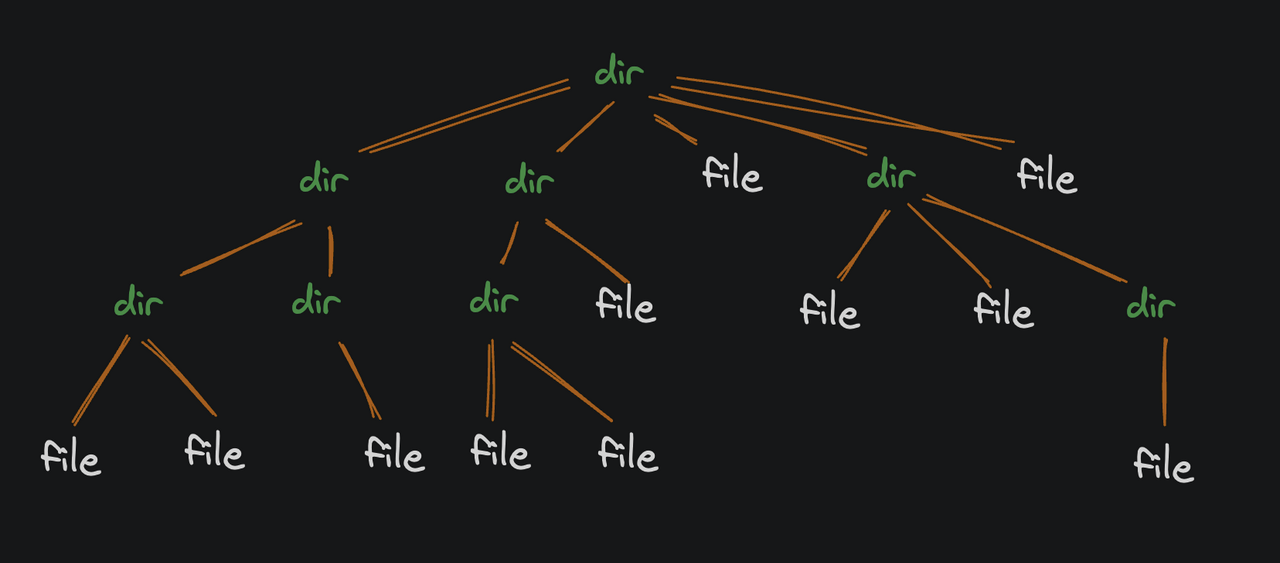
-
Directories (or "folders" on Windows) are just containers that hold files and other directories.
-
Files are just a dump of raw binary data: 1's and 0's. The bytes in a file can represent anything: text, images, videos, etc.
The filesystem tree starts with a single directory called the root directory. The root directory contains files and directories, which can contain more files and directories, and so on.
When you open your terminal, your working directory (the one you're "in") is going to be... somewhere. Most commonly it is your "home" directory.
print working directory
Run the pwd command [print working directory] to see the filepath of your current working directory:
Filepaths
The output of pwd is a filepath. A filepath is a string that describes the location of a file or directory on your computer. Yours should look something like this:
-
The first slash (/) represents the root directory. It's the tippy-top of the filesystem tree.
-
The next part (home) is the name of a directory inside the root directory.
-
Finally, the last part (har1) is the name of a directory inside the home directory.
So this path represents a directory 2 levels down from the root directory:
When you're working with the command line, file paths are basically the bread and butter of navigation. You can't get very far without them.
And here's the good news you're probably already used to thinking of files and directories as nested tree structures. After all, that's literally what they are, and that's exactly how Windows Explorer or Finder on Mac display them.
So a file path? It's just a text-based representation of one file or directory in that hierarchy.
Pretty straightforward, right?
Here's the pattern to remember:
All absolute file paths start at the root of the file system—which is just the very top directory in the hierarchy. Think of it as the trunk of the tree. From there, everything is nested inside a tree of directories, with each directory in the file path separated by a slash /.
Now, here's a small detail that tripped me up at first:
If the path you're looking at points to a file, then the last section of the file path will just be the name of that file.
But if you're looking at a path to a directory, then the last section will be the name of that directory.
Seems obvious when you say it out loud, but trust me when you're staring at a long path in the terminal, it's easy to forget what you're actually looking at. I've been there.
List
Run the ls command [list] to see the contents of your current working directory
Common Examples & Flags:
-
lsThe basic command. It just lists the names of files and folders in the current directory. -
ls -l(Long Listing) Displays detailed information about the files, including file permissions, number of links, owner, group, file size, and the last modified date/time. -
ls -a(All Files) Reveals hidden files. In Unix-like systems, any file or folder starting with a dot (e.g.,.gitignoreor.config) is hidden by default. -
ls -lh(Human-Readable) Combines the long listing (-l) with human-readable file sizes (-h), showing sizes in KB, MB, or GB instead of raw bytes.
Pro Tip: You can combine flags. Running
ls -lahwill show you all files (including hidden ones) in a detailed, human-readable list.
Change Directory
Run the cd command [change directory] command to move into the another directory from the current one
Common Navigation Shortcuts:
-
cd <folder_name>Moves forward into a folder that is inside your current directory. Example: If you are in your home folder and typecd Downloads, you move into the Downloads folder. -
cd ..(Move Up) Moves you back one level to the parent directory. If you are in/home/user/Downloads, typingcd ..takes you back to/home/user. -
cd ~(Go Home) Takes you straight back to your user's home directory from anywhere in the system. (Running justcdwithout any arguments usually does the same thing). -
cd -(Toggle Back) Takes you back to the previous directory you were in before your lastcdcommand. It’s like a "back" button.
The ls and cd commands are the absolute bedrock of navigating any command-line interface (like the terminal in Linux, macOS, or WSL). Think of your computer's file system as a massive tree of folders. ls lets you look at what's around you, and cd lets you walk through the branches.
Putting It Together
Imagine you open your terminal and want to find a Python script inside a project folder. Your workflow would look something like this:
# 1. See where you are starting from
ls

# Output might look like: Documents  Downloads  Desktop  Projects

# 2. Jump into the Projects folder
cd Projects

# 3. See what projects are inside
ls -l

# Output shows detailed info:
# drwxr-xr-x  2 user user 4096 Jun 24 14:00 ai_model
# drwxr-xr-x  2 user user 4096 Jun 24 14:30 web_app

# 4. Jump into the specific project
cd ai_model

# 5. Look for your script, including hidden configuration files
ls -lah
Absolute vs. Relative Paths
So far, we've mostly been dealing with relative file paths which are paths that take your current directory into account.
Let me show you what I mean with an example.
Say we have the following directory structure in our filesystem:
When I'm inside the top-level vehicles directory, the relative path to mustang.txt is:
But here's where it gets interesting and this tripped me up at first.
When I'm inside the cars directory, the relative path to that same file is just:
And when I'm inside the fords directory? Even shorter:
See the pattern? The path changes depending on where I'm standing. It's relative to my current position.
An absolute path, on the other hand, starts at the very root of the filesystem. On Unix-like systems (macOS/Linux), the root is denoted by a forward slash /.
So if the vehicles directory is in the filesystem root, the absolute path to mustang.txt would be:
That path works no matter where I am in the system. I could be in my home directory, in a temp folder, or anywhere else that absolute path will always find the file.
So when I'm inside the fords directory, I can use either:
or
to refer to the same file. Both work. Both point to the same place.
Which Should I Use?
It depends and honestly, that's the answer you'll hear a lot in tech.
Relative paths are easier to read and write. As long as I'm in the correct directory (or the directory I expect to be in), they're simpler to reason about. Less typing, cleaner commands.
Absolute paths are more explicit. They're useful when I'm not sure what directory I'm currently in. Or maybe I'm giving someone instructions on how to find a file on their computer I can't be sure what directory they'll be in when they start following my instructions, so I'll need to use absolute paths to be safe.